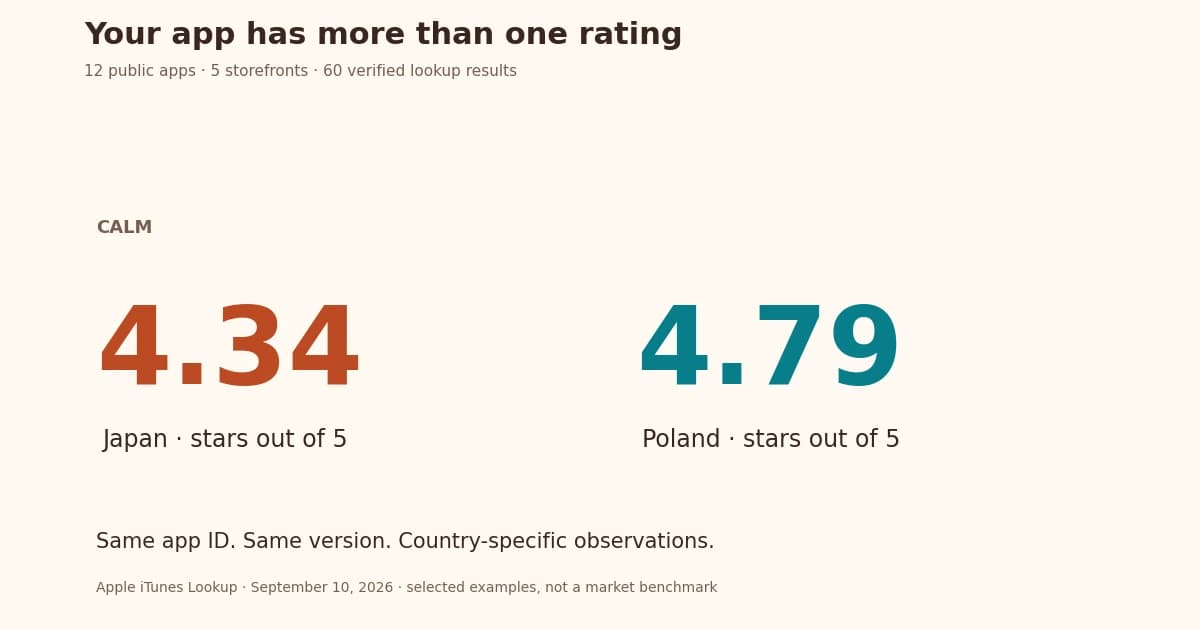
iOS localization adapts strings, formats, layouts, and content for the intended locale. Use Xcode's localization system for the app and a separate reviewed workflow for its App Store listing. This guide covers SwiftUI, UIKit, formatting, and QA.
Start with a complete user task, stable source strings, and a way to test the result. Product language coverage and store metadata are separate; neither guarantees a fixed revenue increase.
This guide covers string resources, SwiftUI and UIKit layouts, formatting and testing. Use metadata translation separately for the App Store listing once the app supports the intended language.
Preparing Your App for iOS Internationalization
Good app internationalization is the foundation for successful iOS localization. Your original setup, before any translation begins, will give you a smoother process later if you structure your code and UI elements with localization in mind.
Separating UI and Code Strings Early
You need to separate user-facing text from your core code for good iOS internationalization. This should happen right from the start, not as an afterthought when you want to go global.
Base Internationalization supports shared Interface Builder files with localized content; it does not automatically extract every user-facing string from arbitrary code. For current Xcode projects, review string catalogs and ensure each intended string is discoverable by the localization system.
To implement this structure:
- Enable "Use Base Internationalization" when setting up your project
- Place your interface files (.storyboard, .xib) in the Base.lproj folder
- Create separate .lproj folders for each target language
- Store translated content in these language-specific folders
This setup comes with clear benefits. Localizers don't have to touch .storyboard and .xib files directly in Interface Builder . Plus, it keeps your app's functionality separate from its user-facing content.
Review localized text when the base interface changes. A shared layout reduces duplication, but changed labels still need translation and testing.
Also, organizing your source code from the start helps you avoid the headache of embedded text strings that become hard to extract later. Rather than hard-coding text, use placeholders that connect to external resource files with your translated content .
Using NSLocalizedString vs String(localized:)
iOS developers have two main ways to handle string localization in code: the classic NSLocalizedString macro and the newer Swift-friendly String(localized:) initializer.
NSLocalizedString has been around for years and works like this:
// Basic usage
let welcomeMessage = NSLocalizedString("welcome.message",
                     comment: "Greeting shown on the home screen")

// With format specifiers
let salesMessage = NSLocalizedString("You have sold 1000 apps in %d months",
                    comment: "Time to sell 1000 apps")
salesLabel.text = String.localizedStringWithFormat(salesMessage, period)
The best part about NSLocalizedString is that the genstrings tool picks it up automatically and creates .strings files for translation . The comment parameter helps translators understand how and where the string appears in your app.
Apple recommends the String(localized:) initializer for newer iOS apps, especially those targeting iOS 15 and later:
// Basic usage
let welcomeMessage = String(localized: "Buy a book")

// With comments
let exploreTitle = String(localized: "Explore",
                   comment: "Title of the Explore tab")
This method fits better with Swift's syntax and modern string catalogs. While NSLocalizedString needs an extra step for format strings, String(localized:) handles string interpolation more naturally .
Here's what to think about when picking between these approaches:
- Project age and compatibility: Older iOS versions need
NSLocalizedString - Team familiarity: Developers who know Objective-C might prefer
NSLocalizedString - Code consistency: Stick to one approach throughout your project
- Modern features:
String(localized:)works better with Swift's string interpolation and catalogs
Existing projects can use NSLocalizedString and String(localized:) together. Keep resource keys, lookup tables, and context clear, and choose APIs compatible with the deployment target.
Whatever method you pick, keep your localizable strings separate and organized from day one. Try using namespaced keys like "home.button.start-run" instead of default language text as keys. This helps avoid translation issues when different languages need different terms for the same concept .
Setting up these internationalization basics early means your app will be ready for multiple languages, which makes the translation process much easier down the road. Learn more about AI powered metadata translation.
Managing Translations with Localization Tools
Your app's codebase needs to be ready for internationalization before moving to the next vital phase - managing translations. The quickest way to handle this workflow uses the right tools. These tools let you create an exceptional localized experience without getting bogged down in manual file management.
Uploading .strings and .xliff Files to Lokalise or Smartling
Export the localizations recognized by your Xcode project and verify the resulting strings and context. Hardcoded or dynamically constructed text can still require code changes. Check the current Xcode export workflow for your project format.
Lokalise and Smartling platforms offer these key features:
- File Format Support: Both platforms work with iOS-specific formats like .strings, .xliff, and .stringsdict files. Some Xcode versions include plural strings in .xliff that need extra attention .
- Centralized Management: A single place organizes all localization projects and tracks progress across languages .
- Translation Memory: The system stores and reuses previous translations to keep terminology consistent .
- Collaboration Features: Quality stays high with comment systems, glossaries, and QA checks .
Developers working with newer iOS string catalogs (.xcstrings) can now import and export directly on many platforms .
Using Visual Context for Accurate Translation
Provide screenshots and comments so translators can understand where a string appears and what action it triggers. This helps resolve ambiguity, but no universal error-reduction percentage is established here.
You can provide visual context in several ways:
Some translation platforms can associate screenshots with strings. Check the current tool capability and verify the mapping; a screenshot alone does not prove the translator has the correct context.
Smartling's web proxy options act as translation filters. Translators see exactly where text appears in your interface . This context matters a lot for iOS apps because space limits affect translation length.
Human translators make better choices with visual context than machine translation alone. Machines miss context, cultural nuances, and language subtleties . A translation guide with character names, humor explanations, and common terms helps boost accuracy even more .
Automating File Sync with CLI or API
As the string set grows, a CLI or API can automate file transfers. Keep validation in the process so missing keys or placeholders are caught before release.
Localization platforms connect to your development environment through powerful APIs and CLIs. You can add string extraction, translation uploads, and completed translation downloads to your CI/CD pipeline . This creates a smooth localization workflow that keeps up with development.
SimpleLocalize shows this with their CLI commands:
simplelocalize upload --apiKey <PROJECT_KEY> --uploadFormat localizable-strings --uploadPath ./{lang}/Localizable.strings
Use the CLI supplied by your chosen translation service and verify the destination files. For example, Localazy uses this download command:
localazy download
Many platforms offer GitHub integrations that sync automatically with your repository updates. New strings get identified without manual work. Localization becomes part of your regular product development .
Automated transfers can reduce repeated file handling. For teams looking to integrate translation directly into their development pipeline, an AI-powered translation API can handle context-aware translations at scale. Check the imported files and complete a real task in each target language.
Best Practices for Localizing SwiftUI and UIKit
SwiftUI and UIKit give you different ways to localize your iOS app. They share the same foundation but each framework needs its own approach to handle multiple languages.
Using LocalizedStringKey in SwiftUI Text Views
SwiftUI makes localization easy with its built-in support for LocalizedStringKey. This type looks up localized strings automatically when you pass string literals to SwiftUI views. You can see this in action when you write Text("Hello, World!"). SwiftUI turns this into a LocalizedStringKey that looks through your app's localization files.
This works because LocalizedStringKey follows the ExpressibleByStringLiteral protocol, which lets string literals convert automatically . String literals and variables behave differently:
- String literals:
Text("hello.world")- Changes toLocalizedStringKeyon its own - String variables:
Text(messageString)- Shows up exactly as written
This leads to one of the most common mistakes in SwiftUI localization. You need to create a LocalizedStringKey yourself when you pass a variable to a Text view if you want it localized . If you don't, SwiftUI will show the string exactly as it is.
You might need to use NSLocalizedString for more complex cases with formatted strings or dynamic content:
// For formatted strings with parameters
Text(String(format: NSLocalizedString("hello", comment: ""), name))
Modern SwiftUI apps that target iOS 15+ can use a better approach with String(localized:) :
Text(String(localized: "welcome.message",
     comment: "Greeting shown on home screen"))
Previewing SwiftUI Views in Multiple Locales
Testing your interface in different languages is vital. SwiftUI Previews makes this simple with the locale environment modifier.
Here's how to preview your view in a specific locale:
#Preview("English") {
    ContentView()
    .environment(\.locale, .init(identifier: "en"))
}

#Preview("Spanish") {
    ContentView()
    .environment(\.locale, .init(identifier: "es"))
}
You can also create previews for all supported locales automatically :
static let localizations = Bundle.main.localizations
    .map(Locale.init)
    .filter { $0.identifier != "base" }

static var previews: some View {
    ForEach(localizations, id: \.identifier) { locale in
        ContentView()
            .environment(\.locale, locale)
            .previewDisplayName(Locale.current.localizedString(
                forIdentifier: locale.identifier))
    }
}
This code creates previews for each language your app supports and updates them as you add new ones. We filter out the "base" localization to avoid duplicate previews .
Avoiding Hardcoded Strings in UIKit
Many iOS apps use UIKit or mix it with SwiftUI. UIKit needs more direct handling to avoid hardcoded strings.
The best way to handle UIKit localization is to use NSLocalizedString for text that users see:
titleLabel.text = NSLocalizedString("welcome.title",
                  comment: "Main screen welcome message")
A big mistake is putting string values straight into Interface Builder without localization . You can fix this by:
- Making UIKit component subclasses that handle localization on their own
- Using IBInspectable properties to set localization keys in Interface Builder
- Adding a string extension to make localized string access easier
Here's what a localization-ready UILabel subclass looks like:
@IBDesignable class UILocalizedLabel: UILabel {
    @IBInspectable var tableName: String?

    override func awakeFromNib() {
        super.awakeFromNib()
        if let key = self.text {
            self.text = NSLocalizedString(key, tableName: tableName, bundle: .main, value: key, comment: "Interface Builder label")
        }
    }
}
Test the resulting labels in each supported language and at larger accessibility text sizes.
Handling Dynamic Content and Formatting
Text localization goes beyond just translating static content. You need to handle dynamic content like numbers, dates, and strings with variables carefully. Each locale has its own formatting rules that these elements must follow.
NumberFormatter for Currency and Decimal Localization
Numbers look different in various regions. The number 3,490,000.89 shows up as "3 490 000,89 €" in France and "3.490.000,89 €" in Germany. They use completely different separators and decimal symbols .
iOS's NumberFormatter class helps handle these regional differences:
let currencyFormatter = NumberFormatter()
currencyFormatter.usesGroupingSeparator = true
currencyFormatter.numberStyle = .currency
currencyFormatter.locale = Locale.current
currencyFormatter.currencyCode = "USD" // Currency of the amount, not the display locale

// Display price based on user's device settings
let priceString = currencyFormatter.string(from: 9999.99)!
// Formats the same USD amount for the locale; this does not convert currency.
NumberFormatter supports decimal, currency, percent, and other styles. Set the intended value and currency code explicitly; the locale changes presentation, not the economic unit or exchange rate.
Set the display locale explicitly when you need a particular regional format:
// Force display in specific locale whatever the device settings
currencyFormatter.locale = Locale(identifier: "de_DE")
// Uses German formatting while retaining the explicitly selected USD currency.
DateFormatter for Locale-specific Date Display
Dates look different around the world. The DateFormatter class helps solve this:
let dateFormatter = DateFormatter()
dateFormatter.dateStyle = .long
dateFormatter.timeStyle = .short

// Automatically formats for the user's locale
let localizedDate = dateFormatter.string(from: Date())
Developers sometimes make the mistake of hardcoding date strings. Using .dateStyle and .timeStyle creates dates that match the user's settings automatically .
Template-based formatting gives you more control while keeping locale-specific arrangements:
// Template with year, month, day components
let template = "yMMMMd"
// Get format appropriate for specific locale
let dateFormat = DateFormatter.dateFormat(
    fromTemplate: template,
    options: 0,
    locale: Locale(identifier: "en_US")
)
// Results in "MMMM d, y" for US but "d MMMM y" for UK
This makes dates like "October 15" in US English appear as "15 oktober" in Dutch, matching both order and spelling conventions .
Using Format Specifiers in Localizable.strings
Format specifiers let you add dynamic content to localized strings. They start with % followed by type indicators like %s for strings or %d for integers .
Positional specifiers let translators reorder values to match their language. This concerns app resource strings; use metadata translation separately for store listing copy. Here is a resource example:
// English
"user_task_progress" = "%@ finished %lu out of %lu tasks.";

// Chinese
"user_task_progress" = "%1$@ 完成了 %3$lu 項任務中的 %2$lu 項。";
The numbers (%1$, %2$, etc.) tell which argument goes where, so translators can move variables around without touching your code .
Apple provides .stringsdict files to handle plural forms:
<key>user_task_progress</key>
<dict>
    <key>NSStringLocalizedFormatKey</key>
    <string>%1$@ has finished %2$#@tasks@</string>
    <key>tasks</key>
    <dict>
        <key>NSStringFormatSpecTypeKey</key>
        <string>NSStringPluralRuleType</string>
        <key>NSStringFormatValueTypeKey</key>
        <string>lu</string>
        <key>one</key>
        <string>%2$lu out of 1 task</string>
        <key>other</key>
        <string>%2$lu out of %3$lu tasks</string>
    </dict>
</dict>
Supply and test the plural variants required by each target language. A stringsdict structure does not verify the wording on its own.
Testing and QA for Localized Apps
Testing localized apps really goes beyond simple string replacement. Quality assurance teams must verify that interfaces work with different text lengths, cultural conventions, and reading directions in a variety of languages.
Exporting and Importing Localizations in Xcode
Xcode makes the localization workflow easier with built-in export and import features. Select your project in the Navigator and choose Product > Export Localizations . Xcode then creates an Xcode Localization Catalog (.xcloc) file for each language . These catalogs contain:
- An XLIFF file with extractable strings from code, storyboards, and XIB files
- Proper .stringsdict plural variants for each language
- Source content files that give context to translators
Translators get better visual context when you enable the "Include screenshots" option during export . The localized content can be reimported through Product > Import Localizations by selecting the updated .xcloc files .
Using Xcode Previews and Simulators for Locale Testing
SwiftUI's preview capabilities make locale testing simple. The preview code lets you set locale-specific environment variables:
struct ContentView_Previews: PreviewProvider {
    static var previews: some View {
        ContentView()
            .environment(\.locale, .init(identifier: "de"))
    }
}
Multiple localizations can be tested at once by creating additional previews with different locale identifiers .
Simulator testing provides real-life validation. The app target's scheme settings can be modified to a specific language , or you can change the Simulator's system language. System language changes require a Simulator restart, while scheme adjustments only affect your app .
Running UI Tests for RTL and LTR Layouts
RTL language support needs extra attention during testing. Xcode offers a "Right-to-Left Pseudolanguage" option in scheme settings that switches your UI to RTL orientation without Arabic or Hebrew translations .
SwiftUI developers can force specific views to use RTL direction by changing the layoutDirection environment key:
ContentView()
    .environment(\.layoutDirection, .rightToLeft)
    .environment(\.locale, .init(identifier: "de"))
UIKit apps can test RTL layouts by modifying the semanticContentAttribute property of views . RTL testing should verify that:
- Images flip correctly when needed (using
imageFlippedForRightToLeftLayoutDirection) - Navigation flows from right to left properly
- Text aligns according to language direction
Xcode test plans should be configured with different locale settings to find clipping, truncation, or layout issues across languages and devices .
App Store Localization and ASO Strategy
After testing the localized app, review its App Store page. The copy and screenshots should match the experience people will find after installing.
Localizing App Name, Description, and Keywords
App Store lets you localize various metadata elements. You can translate your app's name, subtitle, description, keywords, promotional text, support URL, and "What's New" section into more than 40 languages and locales . This helps you craft messages that resonate with specific markets.
App Store localization needs more than simple translation. Each locale shows different search behaviors that need customized keywords. You can optimize discoverability through App Store Connect's keyword field for each locale .
Check the listing and search results in each intended storefront rather than assuming one language’s keywords cover every market.
Using Locale-specific Screenshots and Previews
Visual assets drive conversion rates on the App Store. Each device size and language can have one to ten screenshots and up to three optional app previews .
Your screenshots should reflect these cultural elements for each locale:
- Local currency formats
- Regionally appropriate imagery
- Translated UI elements
- Cultural norms and references
The process to add localized screenshots is simple. Go to App Store Connect, select your app, click the version you want, and use Media Manager to upload assets for each language . App previews always appear before screenshots in the store listing .
Review locale behavior without relying on a fixed cross-index map
App Store language presentation and search behavior can vary by storefront and settings. Do not fill unrelated locales with misleading copy based on an unofficial fixed map. Research the intended market and verify the actual listing. Apple localization guidance.
What is the first step in preparing an iOS app for localization?
The first step is to separate UI and code strings early in the development process using Base Internationalization in Xcode. Store all localizable content in separate resource files with unique identifiers rather than hardcoding text directly in your code. This approach makes it easier to manage translations and update different language versions without changing your application code. Starting internationalization early prevents costly refactoring later when you want to expand to new markets.
What is the difference between NSLocalizedString and String(localized:) in Swift?
NSLocalizedString is the traditional localization method that works with older iOS versions and is recognized by the genstrings tool for extracting localizable strings. String(localized:) is a newer Swift-friendly approach recommended for iOS 15 and later, offering better integration with Swift syntax and modern string catalogs. Choose NSLocalizedString for backward compatibility with older iOS versions, or String(localized:) for modern Swift projects targeting iOS 15 and above.
How can I test my iOS app in multiple languages without changing device settings?
Use SwiftUI Previews with environment modifiers to preview your app in multiple locales simultaneously without changing device settings. You can also use Xcode's simulator to test different language configurations and run UI tests specifically designed for both left-to-right and right-to-left layouts. These testing methods help catch layout issues, truncated text, and encoding problems before your app reaches users in different markets.
How does multi-index localization work on the App Store?
Apple's public guidance does not establish a permanent universal cross-indexing map. Keep each listing appropriate to its intended audience and verify the relevant storefront rather than promise extra keyword capacity.
How should I handle currency and date formatting in a localized iOS app?
Use locale-aware number and date formatters with the correct underlying values. Set the currency code explicitly when formatting money; locale presentation does not convert the amount into a different currency.