Guides/App Screenshots

App Screenshots

The Complete Guide to App Store Screenshots

Everything you need to know about designing, sizing, and optimizing app store screenshots for iOS and Android. Maximize your conversion rate with proven visual strategies.

7 sections
8 min read
1

Why Screenshots Matter

Screenshots are the most influential factor in a user's decision to install your app. Research from StoreMaven and SplitMetrics shows that up to 60% of users never read the description—they decide based on visuals alone. Your screenshot gallery is essentially a visual sales pitch that must communicate your app's value proposition in a three-to-five-second scroll.

Both Apple and Google prioritize screenshots in their store layouts. On iOS, the first three screenshots appear directly in search results (before the user even taps on your listing). On Google Play, the feature graphic and first screenshots are front and center on the product page. This prime real estate means your visual assets have more impact on conversion rates than any other single element of your listing.

Well-designed screenshots can increase conversion rates by 25–35%. Conversely, poor screenshots—blurry images, wall-of-text captions, or irrelevant content—can tank an otherwise solid listing. Investing in screenshot quality is one of the highest-ROI activities in app marketing. Tools like AppDrift's free screenshot generator make professional-quality design accessible to every developer, regardless of design skill or budget.
2

Screenshot Dimensions

Getting screenshot dimensions right is critical—stores will reject submissions that don't match required specifications. Apple requires screenshots for each device size you want to support. The current required sizes are: iPhone 6.9" (1320 x 2868 or 2868 x 1320 pixels), iPhone 6.7" (1290 x 2796 or 2796 x 1290), iPhone 6.5" (1284 x 2778 or 2778 x 1284), and iPad Pro 13" (2064 x 2752 or 2752 x 2064). You need at least one of the iPhone sizes; the 6.9" screenshots cascade down to smaller devices.

Google Play requires a minimum of 4 screenshots per listing with dimensions between 320px and 3840px on any side, a maximum file size of 8MB, and a 16:9 or 9:16 aspect ratio. The most common Android screenshot size is 1080 x 1920 pixels (portrait) or 1920 x 1080 (landscape). Google Play also supports a feature graphic (1024 x 500) that appears at the top of your listing on Android devices.

Managing multiple sizes across multiple devices quickly becomes complex, especially when you add localization into the mix. AppDrift's screenshot generator handles all device sizes automatically, letting you design once and export for every required dimension. It supports all current iPhone models, iPad Pro, and standard Android sizes—saving hours of manual resizing work.

3

Design Best Practices

The most effective screenshots follow a narrative structure: they tell a story from the first slide to the last. Lead with your strongest feature or most compelling use case in screenshot one, then progress through your key value propositions. Each screenshot should communicate one clear benefit, not a laundry list of features. Use large, readable captions (minimum 40pt font equivalent) with benefit-oriented language: "Track Your Spending in Seconds" outperforms "Transaction History Feature."

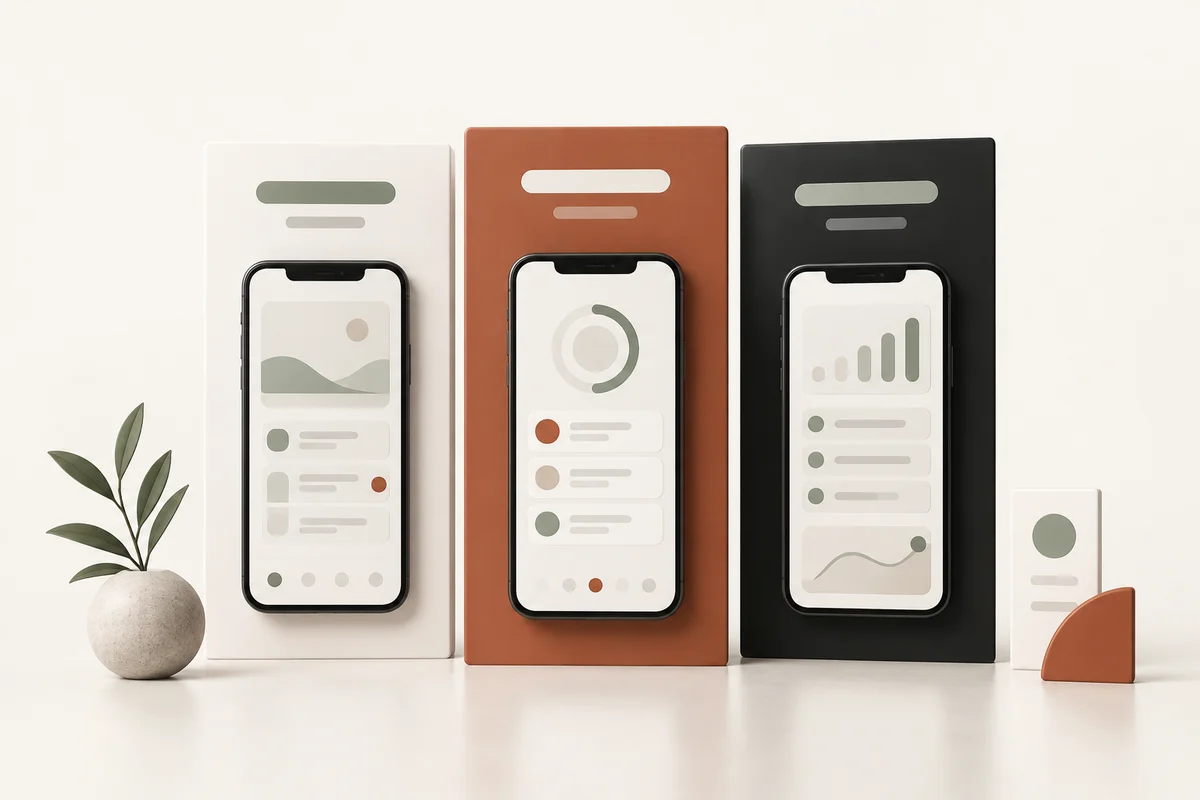
Keep your visual design consistent across all screenshots. Use the same color palette, typography, and layout structure. This creates a cohesive brand experience as users swipe through. White or light backgrounds tend to perform well because they make the app UI stand out, but dark backgrounds can work for entertainment, gaming, or media apps. Include device mockups (iPhone or Android frames) to give users spatial context for what they're seeing.

Pay attention to contrast and readability. Caption text should be easily legible against the background at typical phone viewing distances. Avoid placing text over busy app UI areas. Use shadows, overlays, or dedicated text zones to ensure clarity. Finally, consider the "thumb stop" effect—your first screenshot must be visually arresting enough to make users pause their scroll. Bold colors, clean typography, and an immediately clear value proposition are your best tools. The AppDrift screenshot editor provides professional templates with these principles built in.

4

Screenshot Types

There are several screenshot formats, and the best apps often mix multiple types within a single gallery. Feature-focused screenshots highlight individual app capabilities with a caption and a device showing the feature in action. Lifestyle screenshots place the app in a real-world context—hands holding a phone, a desk setup, or an outdoor scene—to help users envision themselves using it. Social proof screenshots showcase ratings, awards, press mentions, or user counts to build trust.

Before/after screenshots are highly effective for utility apps (photo editors, productivity tools, fitness apps). They visually demonstrate the transformation your app delivers. Comparison screenshots show how your app stacks up against alternatives or manual processes. Onboarding screenshots preview the setup experience to reduce anxiety about complexity. Each type serves a different psychological purpose in the persuasion chain.

For most apps, the optimal gallery follows this sequence: (1) a hero screenshot with your primary value proposition, (2–3) feature-focused screenshots showing key capabilities, (4) a social proof or testimonial screenshot, and (5) a closing screenshot with a call to action or additional features. Apple allows up to 10 screenshots per device type; use at least 6 to maximize the scroll depth users engage with. Remember that each screenshot should work both as part of the gallery and as a standalone image, since users may jump to any position.

5

Localized Screenshots

Localizing your screenshots is one of the most underused growth tactics in ASO. When users see screenshots with text in their native language and content that reflects their culture, conversion rates increase significantly. Even simple caption translation—changing "Track Your Expenses" to "Verfolge deine Ausgaben" for German users—can boost installs by 20–30% in that market.

There are three levels of screenshot localization to consider. Caption-only localization translates the text overlays on each screenshot while keeping the app UI in English. This is the fastest approach and offers strong ROI. Full UI localization also shows the app interface in the target language, which requires either a localized app build or clever mockup editing. Cultural localization goes furthest, adapting imagery, content examples, and even color schemes to match local preferences.

The challenge with localized screenshots is scale. Supporting 15 languages with 8 screenshots each across 3 device sizes means managing 360 individual image files. Without automation, this becomes a maintenance nightmare every time you update your screenshot design. AppDrift's screenshot generator solves this by supporting batch text replacement across languages and batch export across device sizes. Combined with the Figma integration, you can maintain a single design source and generate all localized variants programmatically.

6

A/B Testing Screenshots

A/B testing your screenshots is the only reliable way to know which designs convert best. Intuition and best practices get you 80% of the way there; testing closes the remaining gap. Google Play offers a built-in testing feature called Store Listing Experiments that lets you test up to three screenshot variants against your control, with automatic traffic splitting and statistical significance reporting.

On iOS, Apple provides Product Page Optimization (PPO), which lets you test up to three treatment pages against your default. Each treatment can have different screenshots, app previews, and promotional text. Tests run until you reach 90% confidence, and Apple provides clear reports on impression-to-install conversion lift. You can run tests for specific localizations, which is valuable for optimizing localized screenshots independently.

When designing tests, change one variable at a time for clean results. Common tests include: first screenshot content (feature A vs. feature B), caption style (benefit-oriented vs. feature-oriented), visual style (dark background vs. light), layout (device mockup vs. full-bleed), and the number of screenshots (5 vs. 8 vs. 10). Run each test for at least two weeks and aim for at least 1,000 impressions per variant before drawing conclusions. Document your findings and build an internal knowledge base of what works for your specific audience—these insights compound over time.

7

Common Mistakes

The most common screenshot mistake is leading with a weak first screenshot. Your first image must be your strongest—it's the one users see in search results before tapping into your listing. A login screen, a generic splash screen, or an overly complex feature view as your first screenshot wastes your most valuable real estate. Lead with your core value proposition in a visually compelling format.

Other frequent mistakes include: too much text on screenshots (captions should be 5–8 words maximum), inconsistent design across the gallery (mixing styles creates a disjointed, unprofessional impression), outdated screenshots showing old UI versions (this erodes trust), and ignoring device-specific requirements (submitting only one size when multiple are required, or stretching images to fit). Also avoid showing empty states, error screens, or loading indicators in your screenshots.

Finally, many developers make the mistake of never updating their screenshots. Screenshot design trends evolve, and store guidelines change regularly. Screenshots from 2023 look dated in 2026. Schedule a screenshot refresh at least twice a year, or whenever you ship a major UI update. If screenshot creation has been a bottleneck for you, AppDrift's screenshot generator eliminates that friction with templates, device mockups, and batch export—entirely free, with no watermarks or limits.

Ready to get started?

Put these strategies into action with AppDrift

AI-powered metadata generation, translation to 40+ languages, professional screenshot creation, and one-click store publishing. Everything you need to optimize and grow your app.

Start your free Pro trial7-day Pro trial · Cancel anytime