Quick answer: enter a query, store and country in the free keyword difficulty checker. It scores up to ten returned apps from 0 to 100 and shows a competitor preview. Use that score to compare relevant terms. Results may come from a cache, including older data if a fresh check fails. Review any freshness information shown; if the observation time is unavailable, do not assume the results were collected today.
What is keyword difficulty?
AppDrift's keyword difficulty is a 0–100 score describing selected signals from the first ten apps returned by a store search. It combines review or rating counts, average star ratings, title matches and publisher diversity. A higher number means those signals contributed more under this model; it does not measure the effort your app would need to rank.
Metadata space is limited, so research should help you choose relevant language. Apple's keyword limit is 100 bytes, separate from the title and subtitle character limits. The difficulty score is a shortlist aid, not a probability of reaching a specific rank.
How to check keyword difficulty for free, step by step
- Enter the exact keyword. Type the phrase a user would actually search — "habit tracker", not "an app for building habits". Compare relevant two- and three-word variants. Our phrase-length study found differences between groups of selected keywords; it did not measure what happens when you add a word to the same phrase.
- Pick the store and country. The scorer uses up to ten returned apps. Results and collection coverage can differ by market, so inspect the returned apps and their relevance before comparing scores.
- Read the score and its band. Under 30 is Easy, 30–59 Moderate, 60–79 Competitive and 80+ Very hard in this tool. Those are heuristic labels, not verified success bands. The popularity number is a result-set proxy, not measured search volume.
- Inspect the evidence: compare the returned apps, reviews, ratings and title relevance. A weaker incumbent profile can justify more research; it does not establish that the keyword is easy to win.
You can work through your candidate list with the difficulty checker, then spend more time reviewing the apps returned for your strongest candidates.
How to read the score: the four difficulty bands
| Score | Band | What it means for your app |
|---|---|---|
| 0–29 | Easy | The returned apps have weaker competition signals. Check relevance and demand before using the term. |
| 30–59 | Moderate | Competition signals sit in the middle range. Inspect the apps and how closely they match your audience. |
| 60–79 | Competitive | Higher combined signals under this model. Compare relevant alternatives and review the returned apps; this band is not an eligibility rule. |
| 80–100 | Very hard | Strong incumbents under this scorer. Consider a narrower phrase; the score does not predict your rank. |
In the dated 604-check sample, iOS terms included sleep at 90, calendar at 88 and habit tracker at 84; 37% of scored iOS keywords fell in the 41–60 range. These are descriptive results of the scorer and selected sample, not validated success thresholds. See the study method and limits.
What the difficulty score is calculated from
AppDrift's current scorer weighs top-ten review strength (40%), rating quality (20%), title match (20%) and publisher diversity (20%). These are AppDrift's heuristic weights, not Apple's ranking formula. The public route can serve a 72-hour cache or older fallback data after a scrape failure. Review counts also feed the iOS popularity estimate. The two scores therefore share an input; neither provides independent evidence of search demand.
Whatever tool you use, apply one test: does it tell you why a keyword scored what it scored, and does it check live results or a cached index? Without that explanation, you cannot judge what the score tells you.
Can I check keyword difficulty manually?
A manual search can help you inspect relevance and the apps returned. Record country, time and visible depth. Apple's search guidance explains broad relevance and behavior inputs; it does not validate AppDrift's review-count weights or publisher-diversity formula. Apple search guidance.
A manual review takes time, and device search results can vary between checks. It also does not reveal search volume. The free checker applies the same scoring method to each returned set of apps, which makes a longer shortlist easier to compare.
Is keyword difficulty different on iOS and Android?
The dated sample averaged 61.7 on iOS and 44.1 on Android: a 17.6-point difference on this composite scale. The samples differed, so this does not establish that iOS is 40% harder in real-world ranking terms. The observed median collection depths were 200 and 30. Difficulty uses the top ten: changing only total depth from 30 to 200 does not lower difficulty when the same first ten remain.
Research each store separately before reusing a keyword list. The same term can return different competitors on iOS and Android. Compare scores within one platform: the popularity inputs use installs on Google Play and review counts on the App Store.
What to do once you know the difficulty
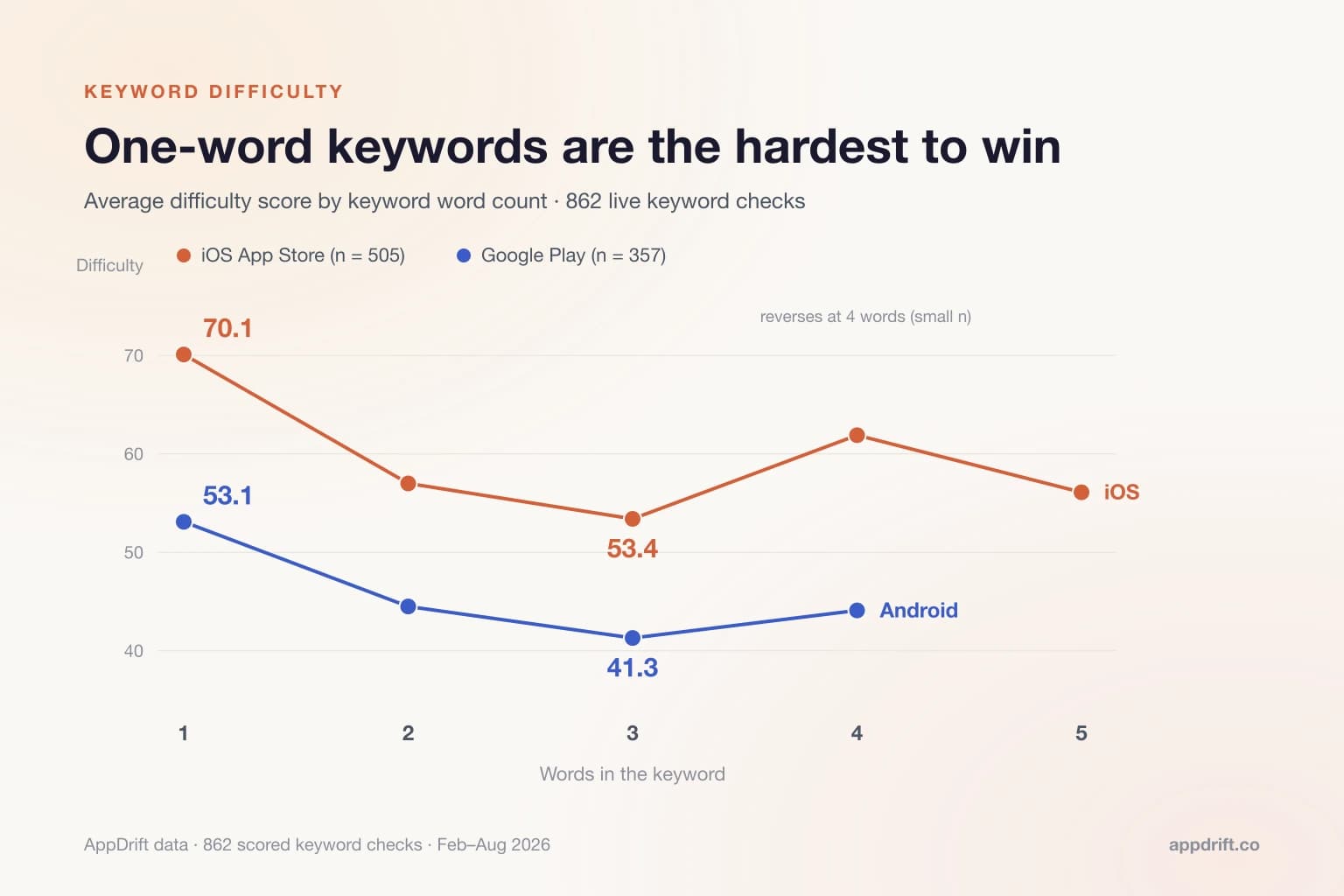
In 862 scored checks, one-word iOS terms averaged 70.1 difficulty and three-word phrases averaged 53.4. This comparison describes the selected queries, not an effect caused by adding words. Investigate relevant phrase variants and obtain separate demand evidence. Long-tail study.
Review relevance, demand evidence and observed competition separately. Then check your app's baseline with the rank checker. A position between 11 and 30 is not proof that a title change will produce installs.
Then decide where each term fits naturally. Use the title and subtitle to explain the app, and reserve the 100-byte keyword field for other relevant terms. Our iOS keywords field guide covers the mechanics, and the free keyword space calculator tells you whether your winners actually fit before you're editing metadata in App Store Connect.
Finally, treat difficulty as a moving number. Top tens churn — apps rise, rebrand, and retitle — so a keyword that scored 65 in March can be a 52 by August. AppDrift's keyword tracking shows daily ranks with heuristic difficulty and popularity; Free includes five tracked keywords, with larger allowances from $9.99/month, so you can review those terms alongside their rank history.
Frequently asked questions
How can I check keyword difficulty for free?
Use the free checker for a chosen query, store and country. It shows heuristic scores and returned apps without signup. Checks are rate-limited and may use cached or fallback data.
What is a good keyword difficulty score for a new app?
There is no universal good score. Lower values indicate weaker incumbents under this scorer, but relevance, demand and your app's quality still need review. A score below 30 is not an easy-win guarantee and a score above 80 does not prove entry is impossible.
Is keyword difficulty the same as search volume?
No. Difficulty summarizes the observed competitive field. Actual search volume measures query demand; AppDrift's popularity proxy is not that direct measurement. Use both cautiously and confirm that the phrase describes your app.
How often should I re-check keyword difficulty?
Review it before a metadata update and, as a starting routine, once a quarter. The score can change when different apps enter the top ten. Use rank history and a fresh look at those apps to decide whether your shortlist needs to change.
Data referenced: 604 keyword difficulty checks (411 iOS, 193 Android) scored from collected store search results, February–August 2026. A fresh fetch has not been established for every historical check. Full methodology and limitations are in the difficulty study.