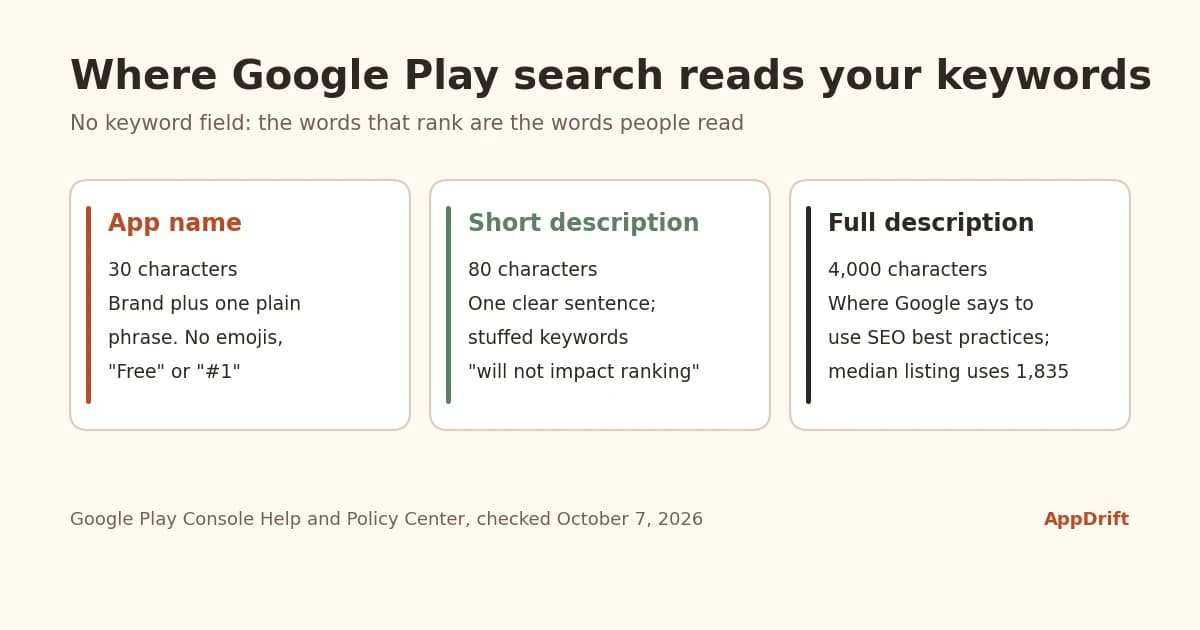
Google Play has no keyword field. Play Store search reads the words in your listing: the 30-character app name, the 80-character short description and the 4,000-character full description. Google then ranks apps on "a combination of ratings, reviews, downloads, and other factors" and keeps the weights private.[1] So Google Play SEO is two jobs: put the phrases people really search for into those three fields as plain sentences, and stay inside a metadata policy that can suspend an app for keyword stuffing.
Checked October 7, 2026 against Google's Play Console Help and Developer Policy Center. The listing-length figures come from 34 Google Play apps whose owners connected them to AppDrift; the method is at the end. AppDrift is our product, and we say where it fits and where it doesn't.
How Google Play search differs from the App Store
If you already optimize an iPhone app, three habits change on Google Play. There is no hidden App Store-style keyword field to fill, the long description counts, and the rules about how a title looks are stricter.
Search-relevant listing fields on Google Play and the App Store (checked October 7, 2026)
| Field | Google Play | App Store |
|---|
| Hidden keyword field | None | 100 characters, comma-separated[2] |
|---|
| App name | 30 characters[3] | 30 characters |
|---|
| Line under the name | Short description, 80 characters | Subtitle, 30 characters |
|---|
| Long description | 4,000 characters; Google says to use "SEO best practices" in it | 4,000 characters |
|---|
| Release notes | 500 characters per language, not for promotion[4] | What's New, 4,000 characters |
|---|
The table hides one more difference. On the App Store, words in the keyword field are invisible to shoppers. On Google Play, every word you add for search is also a word somebody reads, so a phrase only earns its place if it also helps a person decide to install. That's why this guide treats Google Play SEO as writing, not as filling slots.
Ratings count as well. Since November 2021, people on phones see the rating from their own country, and Google says ratings are "taken into consideration for featuring and placement on Play Store."[5] Listing text gets you into the results for a search; ratings and installs decide much of where you land.
Where keywords go in a Google Play listing
App name: your brand and one plain phrase
Google asks for a title that is "unique and accessible, avoid common terms, and reinforce what your app is about," and warns against subtle misspellings of general terms.[1] The pattern that fits those rules is your brand plus the main thing the app does, such as "Penny Plan: Budget Tracker". Your most important search phrase then sits in the field Google shows everywhere, and the name still reads like a name.
The title also carries the strictest policy. Emojis, emoticons and repeated special characters are banned in the app name, icon and developer name; ALL CAPS is only allowed when it is part of the brand; and nothing there may suggest ranking, price or a promotion.[6] Google's best-practice page adds that words like "Free" and "No Ads" "don't belong in app titles or developer names."[7]
Most developers already use the space. In the 34 connected apps we measured, the median app name is 28 of 30 characters, and 79% of listing languages use 25 or more.
Short description: written for people, not for ranking
The short description is the 80-character line people see near the top of your listing. Google's guidance for it is unusually blunt: avoid "unnecessary keywords in an attempt to improve search results; it will not impact ranking and provides a bad user experience."[8] The same page rules out "Best," "#1," "Top," "New," "Sale" and calls to action such as "download now."
Use it to say what the app does in one sentence, with your main phrase only where it reads naturally, and don't repeat it word for word in the full description.[7] In our sample the median short description is 71 of 80 characters and only 11% are under 60, so space is rarely the issue. Clarity usually is.
Full description: the field with room to grow
The full description is where Google tells you to "use SEO best practices," with a warning about keyword spamming in the same sentence.[1] It is also where most listings leave space. The median full description in our sample is 1,835 of 4,000 characters, the middle half runs from 1,305 to 2,544, and only 7% use 3,500 or more.
Length isn't a ranking rule, and Google publishes no ideal number of repetitions. What unused space gives you is room to describe tasks people search for that your listing doesn't mention yet. A method that stays inside the policy:
- Open with two or three sentences a shopper could read on their own. Google suggests keeping the most important text in the top half of the page.
- Give each main task its own short paragraph or list item, named the way people search for it: "split bills with friends", not "collaborative expense allocation".
- Use the synonyms people use, once each, where they describe a real feature. If a sentence exists only to repeat a term, cut it.
- End with who the app is for or what changed recently, never with a block of tags.
Google even shows what to avoid: a string like "Car racing, car driving, race cars, car races, race track, driving, drive, race, cars, vehicles, automobiles, trucks", followed by the advice to describe the app "using everyday language, not a list of keywords."[7] Our Google Play description guide has templates for the writing itself.
If you would rather start from a draft than a blank field, AppDrift's metadata generation writes a Google Play title, short description and full description per language from your app brief, for you to edit. It costs 8 tokens per Google Play language, and a field that comes back over its limit is regenerated rather than cut off.
The developer name follows the same policy as the title. Category and tags aren't free text, but they decide which category searches and browse pages your app can appear on. You can choose up to five tags in Play Console.[9] Pick the ones a shopper would use to describe your app, not the most crowded ones.
Keyword stuffing on Google Play is a policy problem, not only a style problem. Google says "repetitive or irrelevant use of keywords in the app name, description, or promotional description" can "result in an app being suspended on Google Play."[3] The rules apply to every translation of your listing too.[7]
What to keep out of a Google Play listing (Developer Policy Center, checked October 7, 2026)
| Not allowed | Google's own examples | Where it applies |
|---|
| Ranking or performance claims | "App of the year," "#1," "Best of Play 20XX," "Popular," award icons | Any listing text; the policy's examples are for the app name, icon and developer name, and the short-description guidance adds "Best," "Top" and "Million Downloads" |
|---|
| Price and promotion | "10% off," "$50 cash back," "free for limited time only" | Any listing text; examples given for the app name, icon and developer name |
|---|
| Hints at Google Play programs | "Editor's choice," "New" | App name, icon, developer name |
|---|
| Emojis and special characters | Emojis, emoticons (including kaomojis), repeated special characters | App name, icon, developer name |
|---|
| ALL CAPS | Allowed only as part of a brand name | App name, icon, developer name |
|---|
| Keyword lists | "Word blocks and vertical/horizontal word lists" | Any listing text |
|---|
| Anonymous testimonials | Unattributed or anonymous user testimonials | Full description |
|---|
Two consequences are easy to miss. Comparisons with other apps or brands appear among the policy's violation examples, so competitor names don't belong in your listing. And a translated "#1" is still a ranking claim, so check every language against the same table.[6]
How to do Google Play keyword research
Google publishes no search volume for Play Store queries. Keyword research on Google Play therefore combines what the store suggests, who ranks today and what Play Console reports once you are live.
- Start with your users' words. Read reviews and support emails and write down the tasks people describe. Those phrases are usually closer to real searches than your feature names.
- Read Play Store autocomplete in each market. Type the start of each task into Google Play search with the store set to the country and language you target. Suggestions differ between countries, so a list built in the US won't transfer to Brazil. AppDrift's free keyword suggestion tool reads those suggestions for the Google Play storefront you pick.
- Look at who ranks now. Search each candidate and read the names and short descriptions of the top results. If they are all household names, the phrase is a long shot for a young app; a more specific phrase is often reachable sooner.
- Estimate the competition. The difficulty checker near the top of this page scores a term from live Google Play results. It estimates competition, not search volume.
- Give each phrase a field. One main phrase for the app name, one or two for the short description, and the rest spread through the full description where each describes a feature.
- Read Play Console after launch. Its store performance reports break listing visitors down by the term people searched before opening your listing, and group terms with too few visitors as "Other".[10] Monthly report exports include the search term and are posted three to seven days later.[11]
Read the traffic sources carefully. In Play Console's Grow users overview, an install that followed a search for a category such as "racing game" counts under Google Play explore, while a search containing your app's name or a closely associated brand counts under Paid and direct.[10] If you only look at one bucket, you'll misjudge how much non-brand search brings you.
One limit on checking positions: AppDrift's free rank checker reads about the top 30 Google Play results, so an app further down is reported as outside the top 30 rather than at an exact position. We show that on the result instead of guessing a number.
How much of the listing apps actually use
We measured the latest Google Play listing of 34 apps whose owners connected them to AppDrift: 447 listing languages in all, with lengths counted in characters.
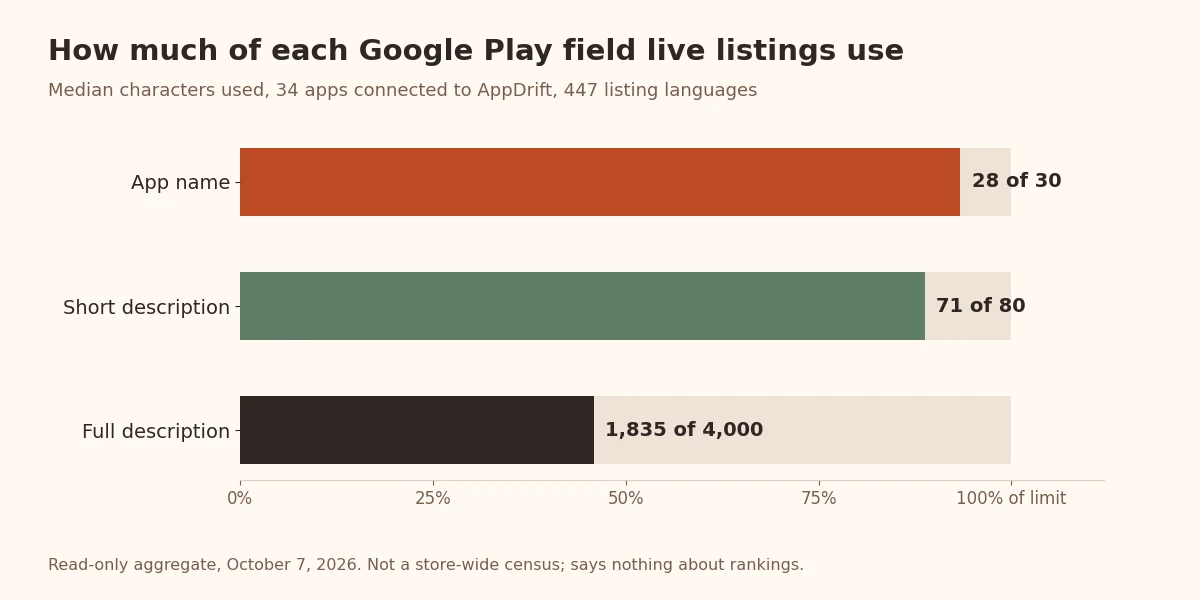
Field use in 34 live Google Play listings connected to AppDrift (447 listing languages, measured October 7, 2026)
| Field | Limit | Median used | Spread |
|---|
| App name | 30 | 28 | 79% use 25 or more |
|---|
| Short description | 80 | 71 | 11% under 60; 30% use 75 or more |
|---|
| Full description | 4,000 | 1,835 | Middle half 1,305 to 2,544; 10% under 1,000; 7% use 3,500 or more |
|---|
Even in a small sample the pattern is plain: the two short fields are nearly full and the long one is less than half used. If you want more of your app's real tasks to be findable, the full description is where the room is, as long as every paragraph you add is one a shopper would want to read.
Read it as a description of these listings, not of the whole store. The apps skew towards independent developers who use AppDrift, and the figures say nothing about rankings or installs. Sixteen of the 34 apps also had only one listing language, which leads to the next point.
Translations and custom store listings
Each language gets its own app name, short description and full description, and Google says a professional translation of the description "can lead to better search results and discoverability for worldwide users."[1] Play Console offers free machine translation and paid human translation, and Google notes that machine translations "are not reviewed or approved by humans."[12] If a language has no translation, shoppers can choose to view an automatic Google Translate version of your page, with a note saying so.
Translate the search phrases, not only the sentences. People in Mexico and in Spain don't type the same words for the same task, so keyword research has to be repeated for each market. Our ASO localization guide walks through what changes in each field, language by language.
Custom store listings go further. You can create up to 50, aimed at a country, at people who arrive from specific Play search terms, at ads traffic or at lapsed users, each with its own name, icon, descriptions and graphics. They aren't translated automatically.[13] At I/O in May 2026, Google said Play Console can turn one of its keyword recommendations into a custom listing drafted by Gemini; treat that draft like any other and check it against the policy table above.[14]
How to measure a Google Play SEO change
- Track positions per keyword and country. Rankings differ by country and move daily, so compare fixed windows of two to four weeks before and after a change, not single days. AppDrift keyword tracking records daily positions in 60+ storefronts; the Free plan covers 5 keywords on 1 app.
- Test descriptions with store listing experiments. Localized experiments can test the icon, feature graphic, screenshots and descriptions in up to five languages, with up to two variants against your current listing. The app name isn't among the testable elements.[15] Our store listing experiments guide covers setup and reading results.
- Compare search terms in Play Console. Look at the same terms and traffic sources before and after the change, and remember that small terms are folded into "Other".
- Change one field at a time. If you rewrite the name, short description and full description in one release, you won't know which change moved anything.
What changed on Google Play in 2025 and 2026
Google Play now uses AI on the shopper's side as well. In December 2024 Google described AI-generated review summaries, FAQs and app highlights on listings.[16] In September 2025 it introduced Guided Search, where people type a goal and Play groups relevant apps into categories.[17] At I/O in May 2026 it announced Ask Play, a conversational search experience, plus Gemini drafts of store listings in other languages for developers to review.[14]
None of this changes the rules above, but it raises the value of plain, accurate task language. A listing that says "track shared expenses with your roommates" gives a person, a search index and a summarizing model the same clear answer; a block of keywords gives none of them anything. For the developer side of the same shift, see what AI ASO tools automate and where they still need checking.
Frequently asked questions
Does Google Play have a keyword field?
No. Google Play has no hidden keyword list like the App Store's 100-character field. Search reads the visible listing text, mainly the app name, short description and full description.
How many characters can a Google Play title have?
30 characters, counted the same way for full-width and half-width characters. The short description allows 80 characters and the full description 4,000.
Do keywords in the short description help ranking?
Not if they are only there for search. Google's guidance says unnecessary keywords in the short description "will not impact ranking and provides a bad user experience." Write one clear sentence about what the app does.
What keyword density should a Google Play description have?
Google publishes no target. Its policy bans repetitive or irrelevant keywords and lists word blocks as a violation, so mention each search phrase where it describes a real feature and remove repetition a reader would notice.
Can I use emojis or "Free" in a Google Play app name?
No. Emojis, emoticons and repeated special characters are banned in the app name, icon and developer name, and Google says words like "Free" and "No Ads" don't belong in titles or developer names.
Where can I see which searches bring people to my listing?
In Play Console's store performance reports, which break listing visitors down by search term, and in the monthly report exports. Terms with too few visitors are shown as "Other".
How long does a Google Play SEO change take to show?
Google publishes no timeline. Positions move every day, so compare windows of two to four weeks before and after a change, per keyword and per country, before deciding whether it worked.
How we measured the listings
On October 7, 2026 we ran a read-only aggregate query over Google Play listings imported through the Google Play Developer API for apps whose owners connected them to AppDrift. For each app we took the most recently imported non-draft version and every listing language with a full description: 447 listing languages from 34 apps in 30 workspaces, one of them an app of AppDrift's own team. We counted characters, not bytes, and no listing text left the database. The figures describe these listings only; they are not a store-wide census and measure no rankings or installs.
Sources
- Google Play Console Help: Get discovered on Google Play search
- Apple Developer: App Store search
- Google Play Console Help: Create and set up your app
- Google Play Console Help: Prepare and roll out a release
- Android Developers Blog: Making ratings and reviews better for users and developers (2021)
- Google Play Developer Policy Center: Metadata
- Google Play Console Help: Best practices for your store listing
- Google Play Console Help: Add preview assets to showcase your app
- Google Play Console Help: Choose a category and tags
- Google Play Console Help: Understand and grow your app's user base
- Google Play Console Help: Download and export monthly reports
- Google Play Console Help: Translate and localize your app
- Google Play Console Help: Custom store listings
- Android Developers Blog: What's new in Google Play, I/O 2026
- Google Play Console Help: Run A/B tests on your store listing
- Android Developers Blog: Notes from Google Play, December 2024
- Google: Google Play curation update, September 2025